XApp Club
Windows disk space utility

C Drive Cleaner for Windows 11

Find large files, review disk usage, inspect common cache and temporary-file locations, and decide what can be moved or removed when your Windows C drive is full.

C Drive CleanerLarge File FinderDisk Space AnalyzerWindows 11 Cleanup
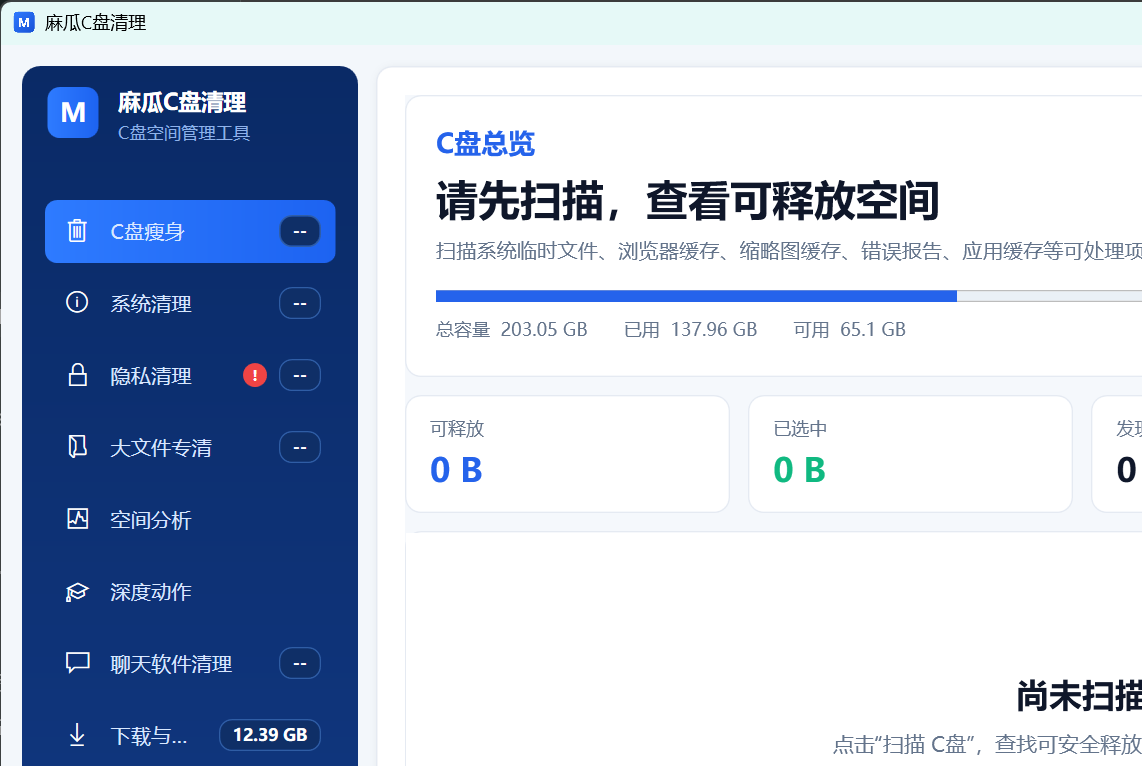
Magua C Drive Cleaner disk usage and large file scan on Windows

What the C drive cleaner helps you review

Large file scan

Locate large files and folders that consume storage so you can investigate old downloads, media, installers and application data.

Disk space analysis

See where C drive storage is going before deleting anything, instead of guessing which folder caused the low-space warning.

Cache and temporary files

Review common cache, browser, application and temporary-file locations that may be safe to clear through the correct workflow.

Safer cleanup decisions

Separate obvious user files from Windows and application files that should not be removed manually.

C drive full: recommended cleanup order

  1. Check the remaining C drive space and Windows storage categories.
  2. Run a large-file scan and identify the application or user that created each result.
  3. Start with Recycle Bin contents, old downloads, unused installers and files you recognize.
  4. Use Windows Settings or the application itself to clear managed caches and uninstall unused software.
  5. Move large personal videos, archives and backups to another drive when deletion is not appropriate.
  6. Restart Windows and check the free-space total again.

What not to delete manually

Do not delete unknown files from Windows, Program Files, ProgramData, recovery partitions or unfamiliar AppData folders just because they are large. Removing system or application files without checking their purpose can break updates, installed software or user profiles.

Back up important work and personal files before cleanup. The tool supports review and cleanup decisions; it cannot determine the value of every file on your computer.

Frequently asked questions

How do I find what is taking up space on my C drive?

Scan the drive, sort the largest results and confirm whether each item belongs to Windows, an installed application or your own files.

Can I safely delete everything the scanner finds?

No. A large file is not automatically unnecessary. Review its location and purpose, and use the correct uninstall or cache-cleaning workflow when it belongs to an application.

Why is my C drive still full after cleanup?

Restart the computer, empty the Recycle Bin, check Windows update storage and restore points, then scan again. Some locked temporary files are released only after a restart.

Download and support

Download the current Windows installer from the verified XApp distribution link. If installation or membership verification fails, include the Windows version and error message when contacting support.